
1. Getting started
When HearthPDF opens you see the start screen. From here you can:
- Open file… to open a PDF from your computer (or press Ctrl+O),
- Create blank PDF to start a new document,
- Combine files to join several PDFs into one,
- or click one of your recent files.
You can also drag PDF files from File Explorer and drop them onto the window, or right-click a PDF in File Explorer and choose .
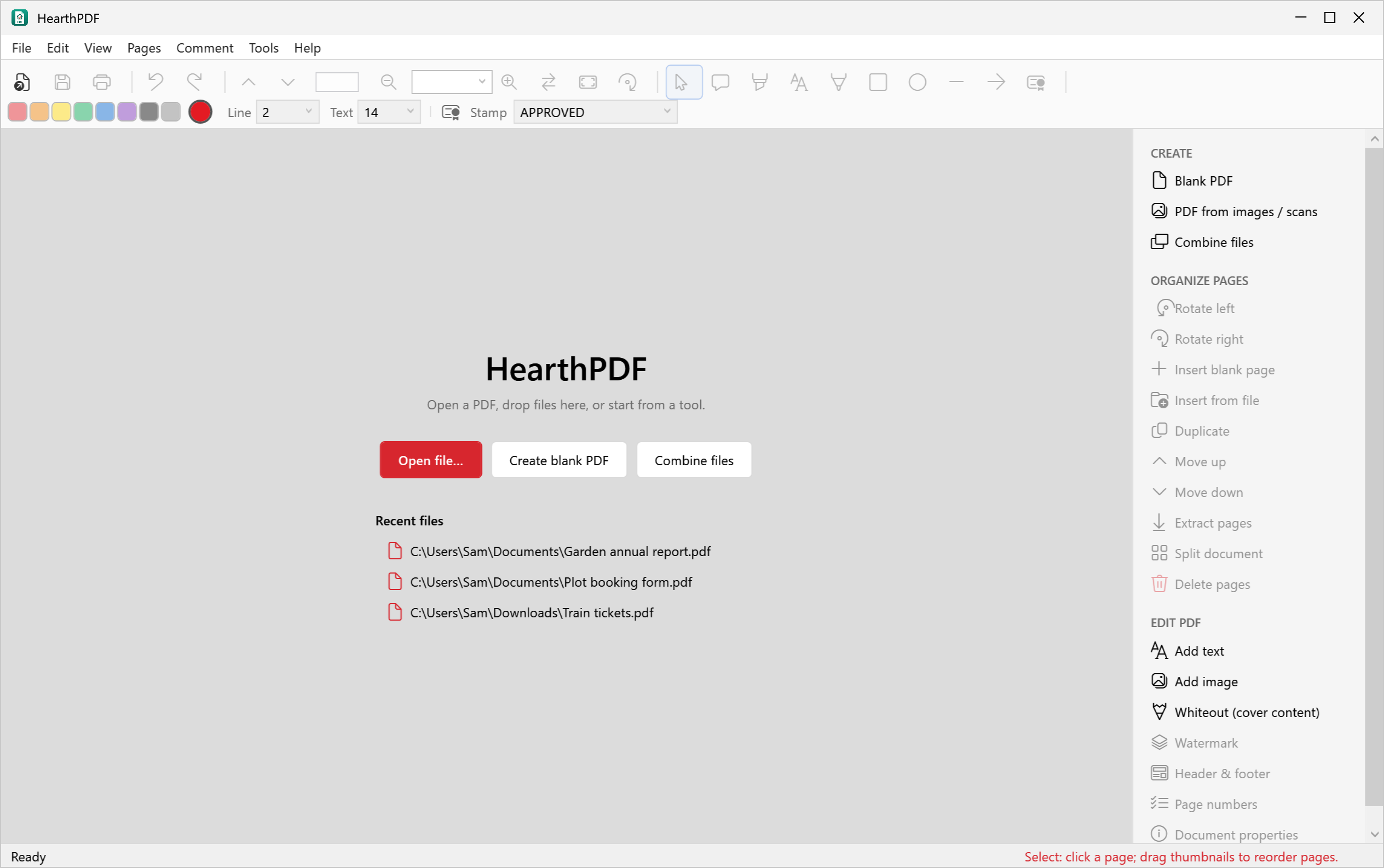
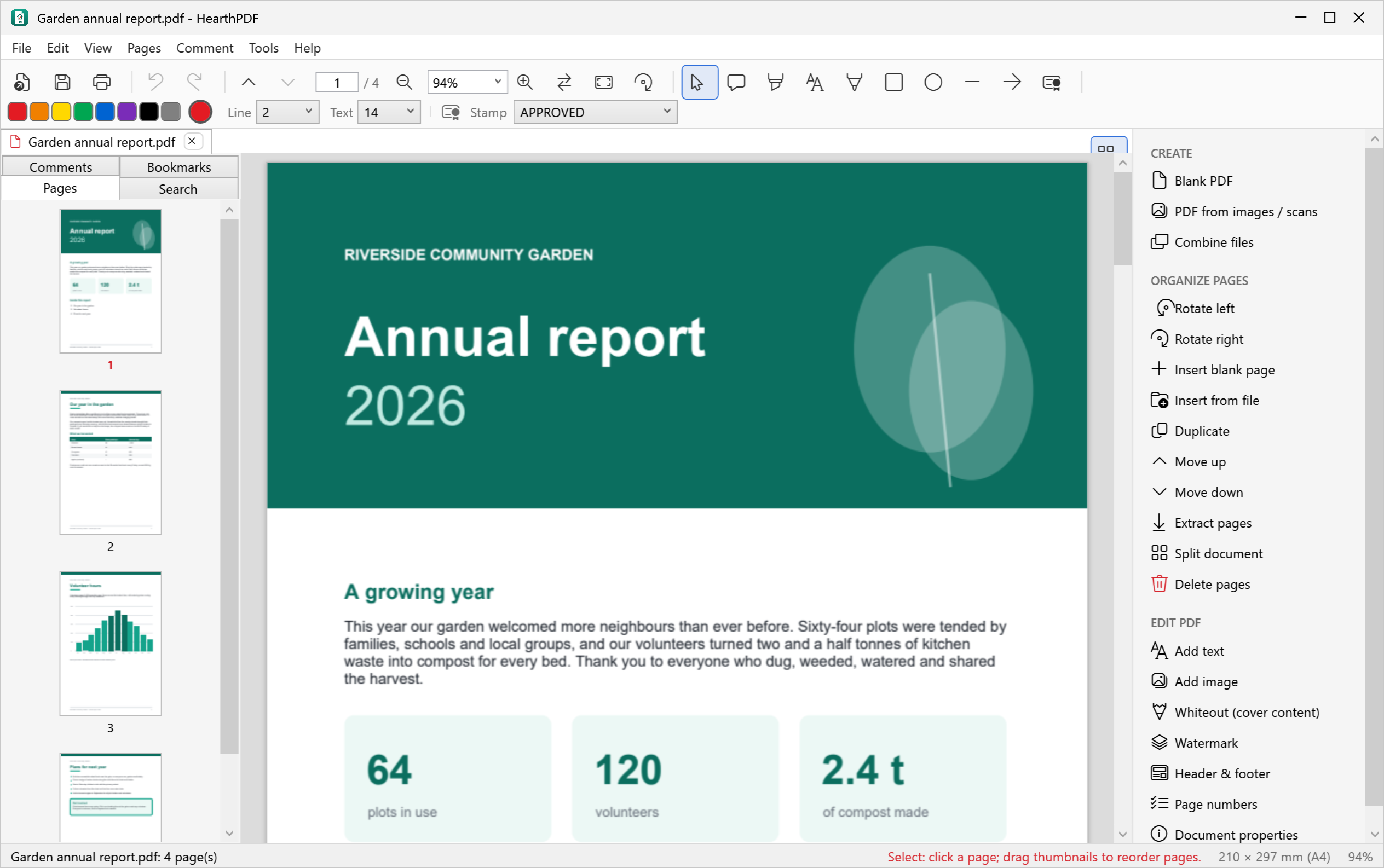
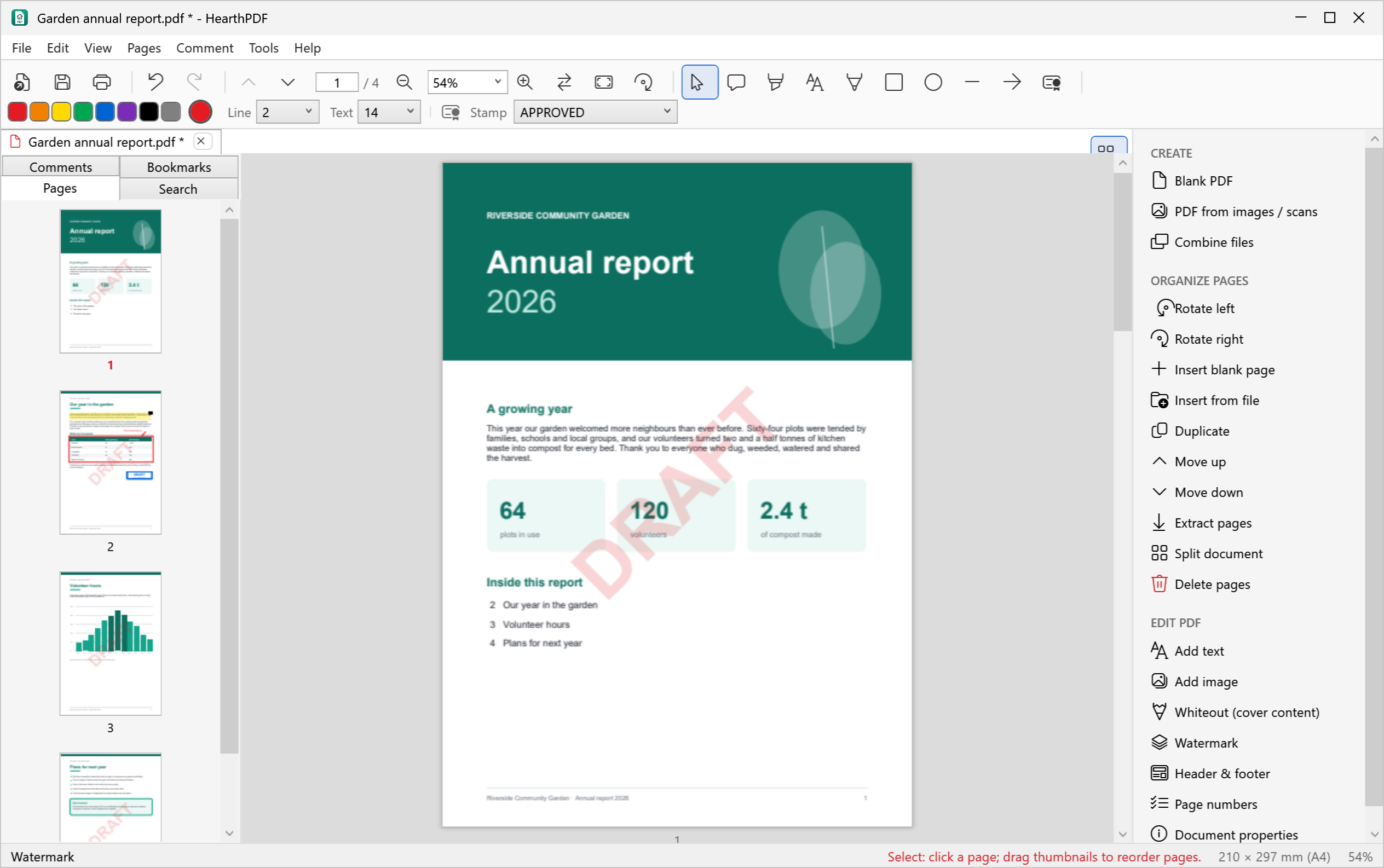
The window has four parts:
- the menu bar and toolbar at the top, with the commenting tools, colours, line width, text size and stamp choice;
- the side panel on the left, with the Pages, Comments, Bookmarks and Search tabs;
- the document in the middle. Each open PDF has its own tab, so you can have several open at once;
- the tools pane on the right, with every task in one list. Hide or show it with the button at its top left, or .
The status bar at the bottom tells you what the current tool does, the size of the current page and the zoom.
2. Viewing documents
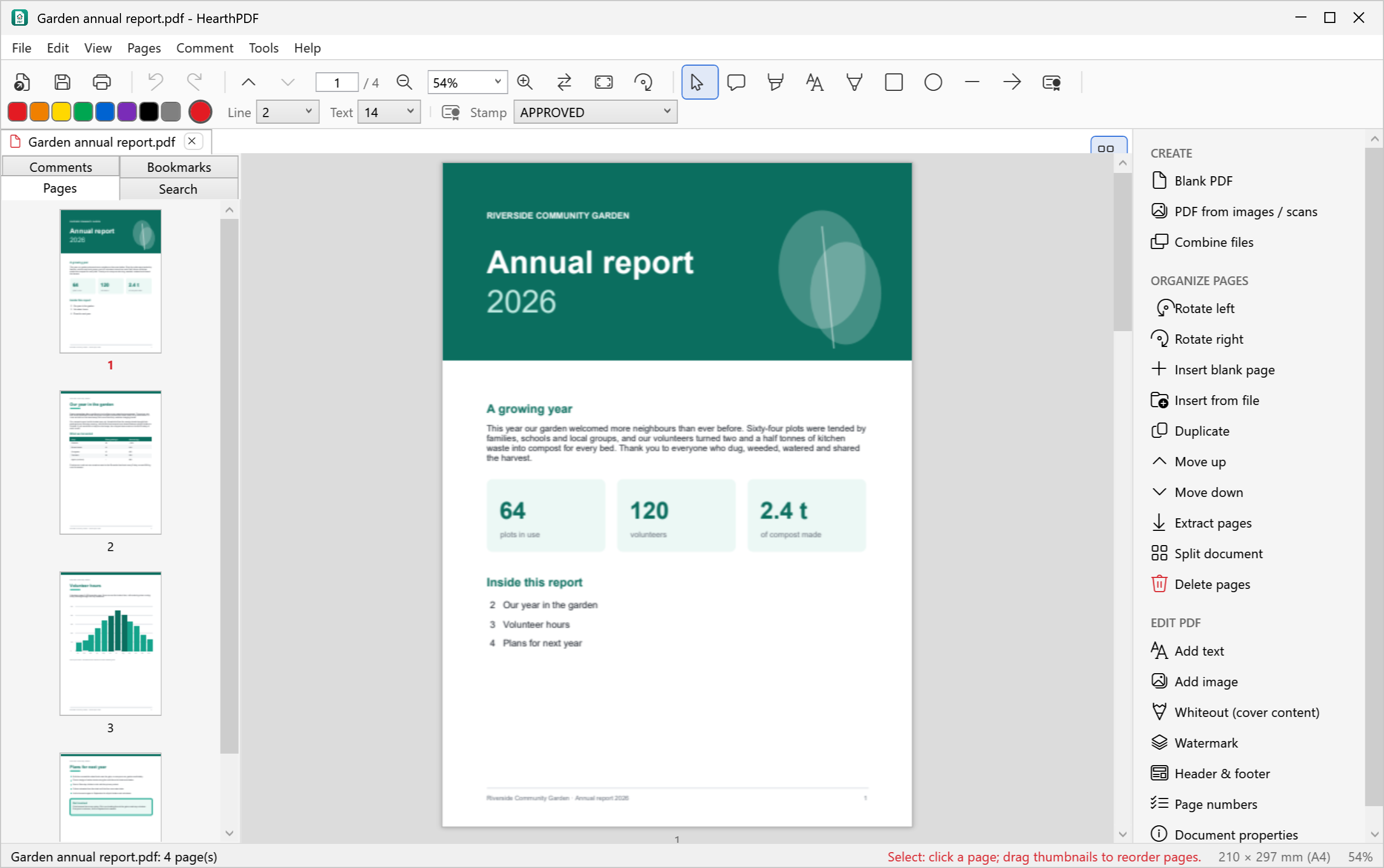
- Scroll with the mouse wheel or scroll bars. Pages follow each other continuously.
- Zoom with Ctrl+mouse wheel, the + and − buttons, or type a percentage into the zoom box.
- Fit width (Ctrl+2) fills the window side to side; Fit page (Ctrl+0) shows a whole page; Actual size is Ctrl+1.
- Go to a page by typing its number in the page box, using the up and down arrows, or clicking its thumbnail. Ctrl+Home and Ctrl+End jump to the first and last page.
- The Bookmarks tab shows the document’s outline, if it has one. Click a bookmark to go there.
3. Comments and mark-up
Choose a tool from the toolbar or the menu, pick a colour and line width, then draw on the page. Everything is saved as standard PDF annotations, so it looks the same in other PDF readers (such as Adobe Acrobat or your web browser) and when printed.
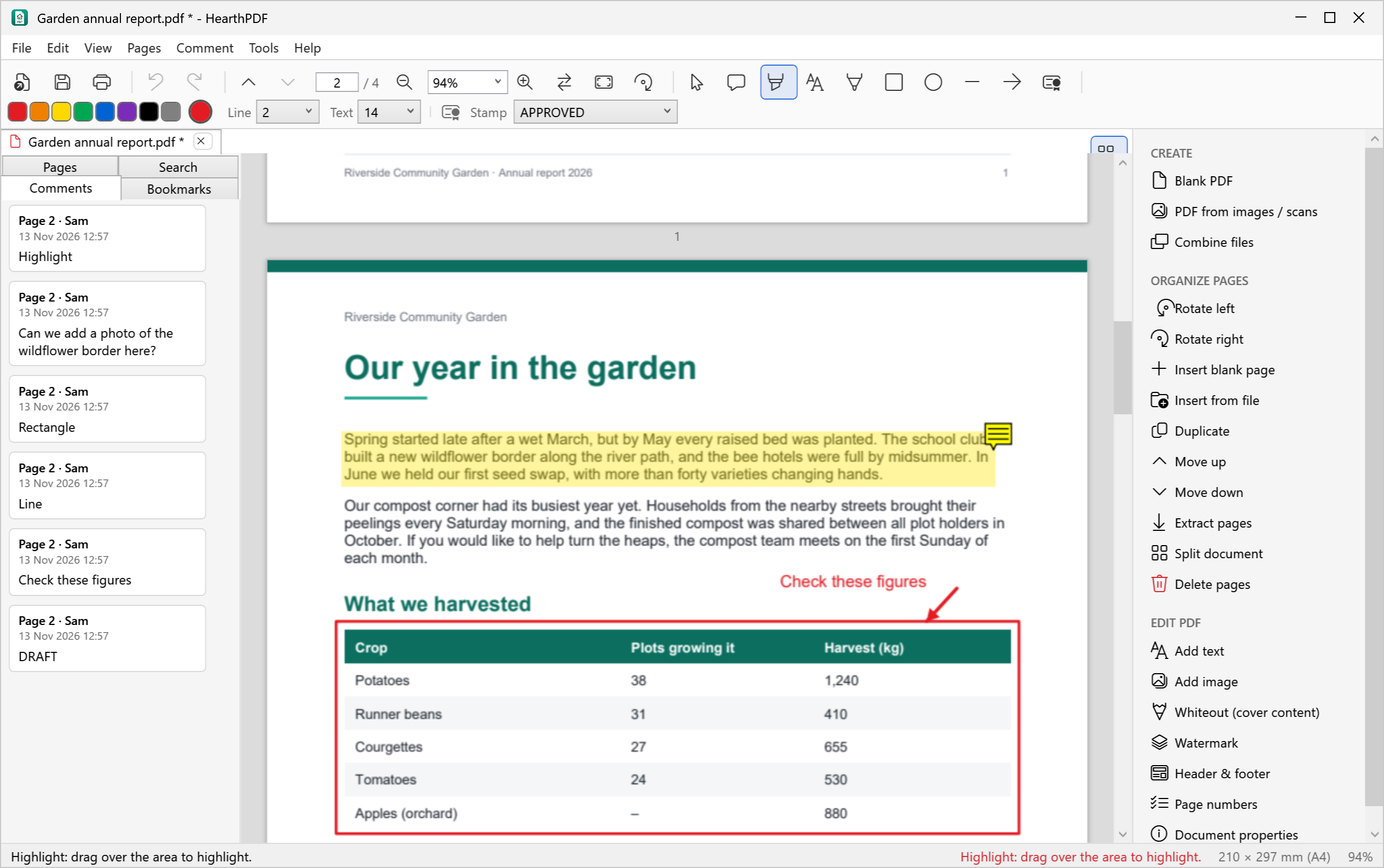
| Tool | How to use it |
|---|---|
| Sticky note | Click where the note should go and type your comment. It appears in the Comments tab with your name and the date. |
| Highlight, Underline, Strikethrough | Drag over the text. |
| Rectangle, Ellipse | Drag to draw. Hold Shift for a square or circle. |
| Line, Arrow | Drag from start to end (for an arrow: from the tail to the point). Hold Shift to keep to 45° angles. |
| Draw | Freehand drawing, e.g. to circle something or add a quick tick. |
| Stamp | Choose the wording in the toolbar (APPROVED, DRAFT, CONFIDENTIAL…), then click or drag a box on the page. |
Moving, resizing and deleting mark-up
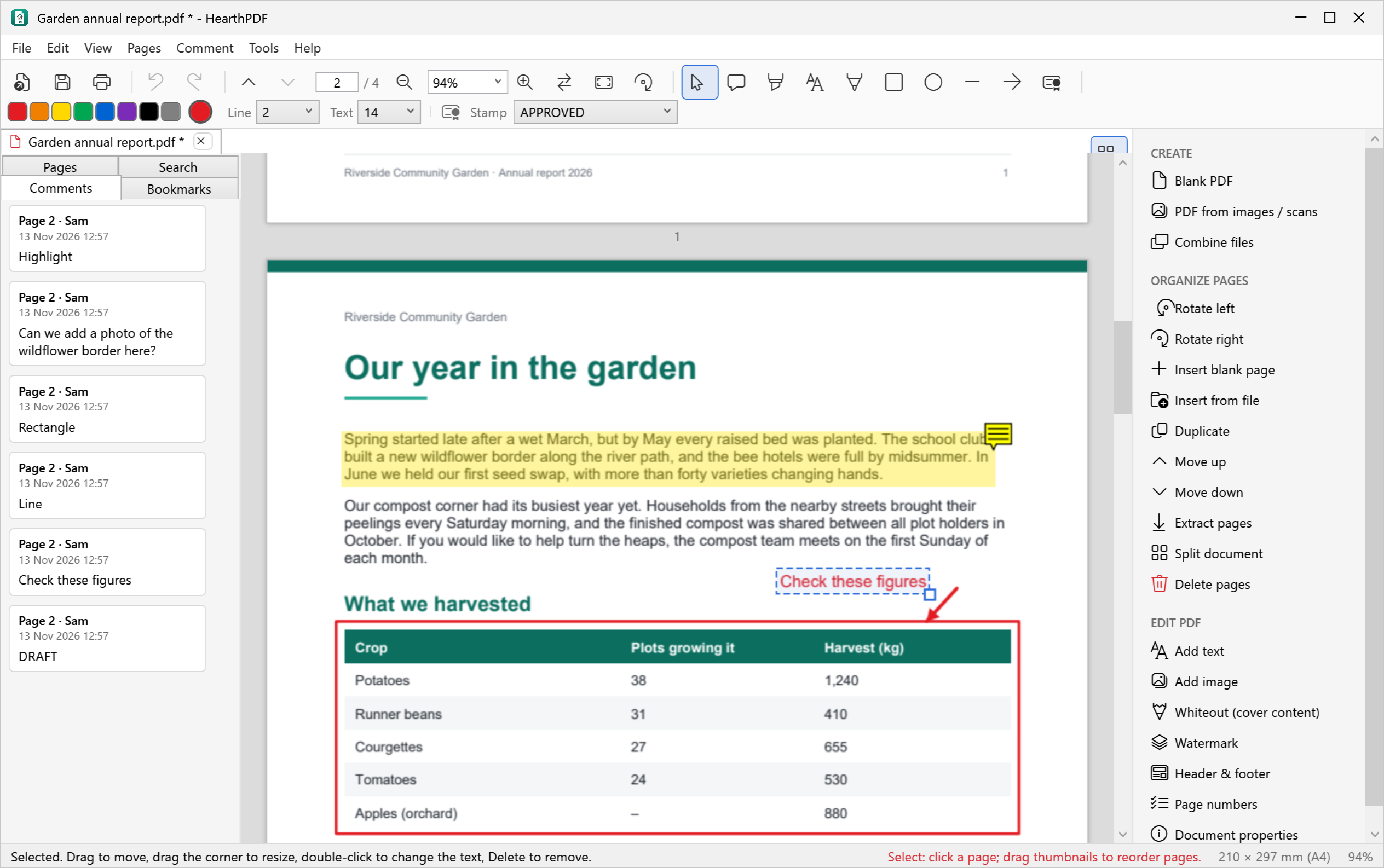
With the Select tool (the arrow on the toolbar, or press Esc), click any stamp, shape, line, highlight, text or image you have added. A dashed blue box shows it is selected. Then:
- Move it: drag it, or nudge it with the arrow keys (hold Shift for bigger steps);
- Resize it: drag the small square at its bottom-right corner (making text bigger makes the letters bigger);
- Change the text of a text box or stamp: double-click it, or right-click and choose Edit text;
- Delete it: press Delete, or right-click and choose Delete.
Comments from other PDF programs can be moved and deleted too. Every change can be undone with Ctrl+Z.
To edit or delete a sticky note you can also right-click it in the Comments tab. Double-click a comment in the list to jump to it.
4. Adding text, images and whiteout
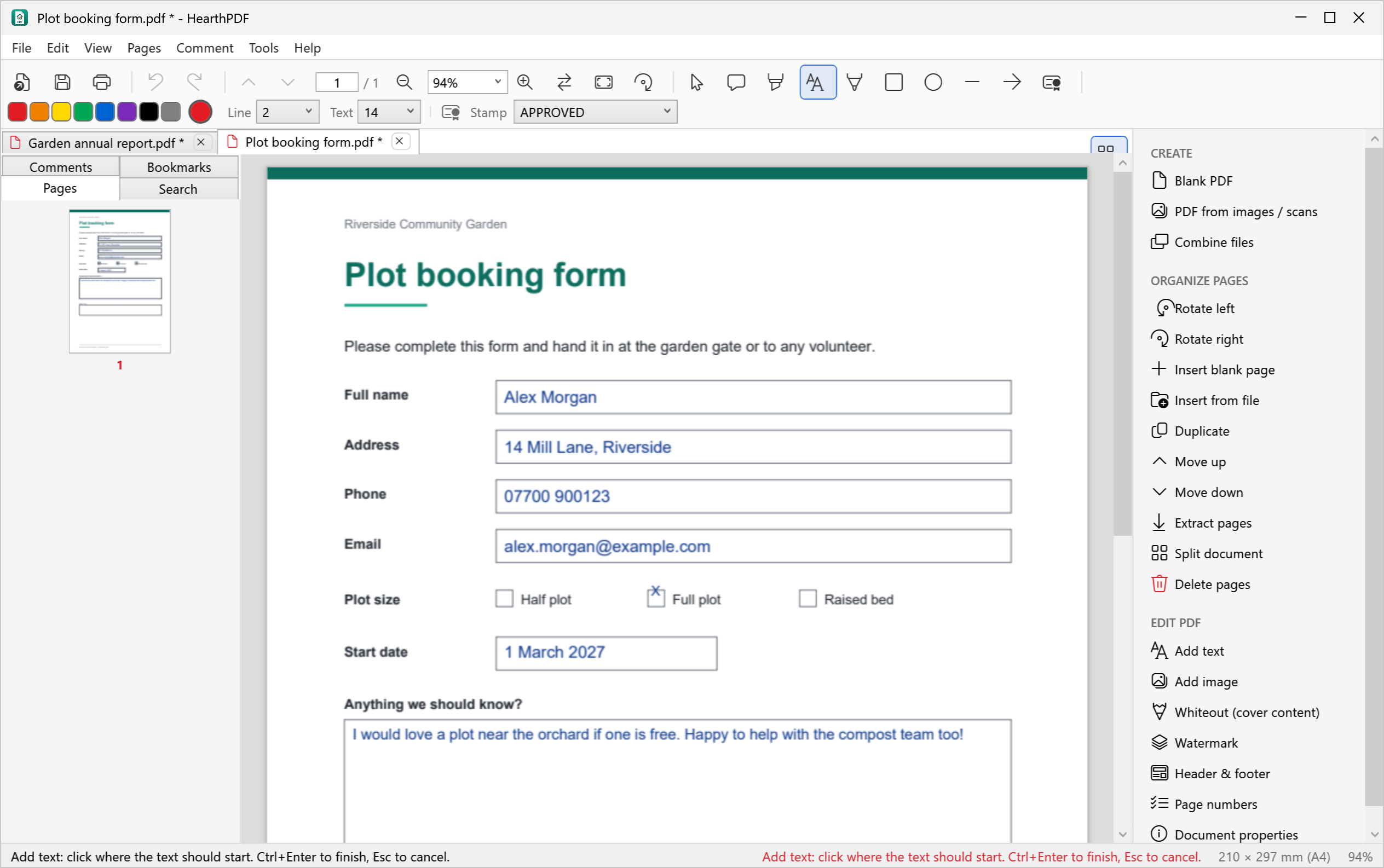
- Add text: click where the text should start and type. Press Ctrl+Enter (or click elsewhere) to finish, or Esc to cancel. Set the colour and size in the toolbar first.
- Add image: drag a box on the page, then choose a picture (PNG, JPG, …). The picture keeps its shape inside the box. Handy for logos, photos or diagrams.
- Whiteout: drag over something to cover it with white, then use Add text to write the correction on top.
5. Filling in forms
Most forms you are sent as PDFs can’t be typed into. With HearthPDF you don’t need to print them:
- Open the form and choose Add text.
- Click inside the first box and type your answer. Repeat for each box.
- For tick boxes, type an X in the box.
- Save with Ctrl+S (or to keep the blank form) and email it back.
6. Organising pages
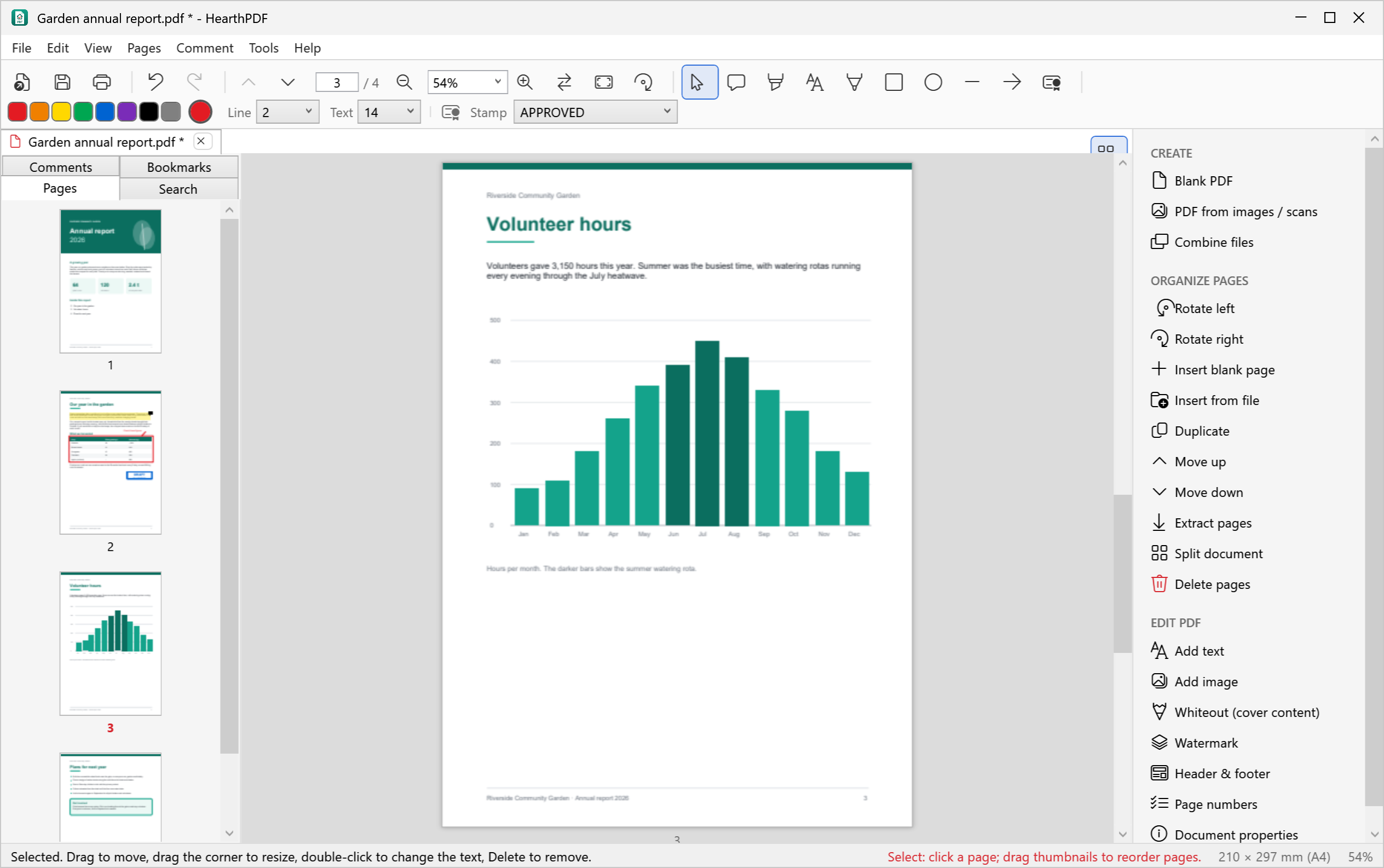
The Pages tab shows a thumbnail of every page.
- Select pages by clicking thumbnails. Hold Ctrl to pick several, or Shift for a range.
- Move pages by dragging thumbnails to a new position, or with Move up / Move down.
- Right-click a thumbnail for Rotate, Insert blank page, Insert pages from file, Duplicate, Extract and Delete.
- Drop a PDF onto the thumbnails to insert its pages at that point.
- Extract pages saves the selected pages as a new PDF. Split document cuts a PDF into several files (for example every page, or every 5 pages).
- Reverse order (in the Pages menu) is useful after scanning double-sided paper the wrong way round.
7. Searching
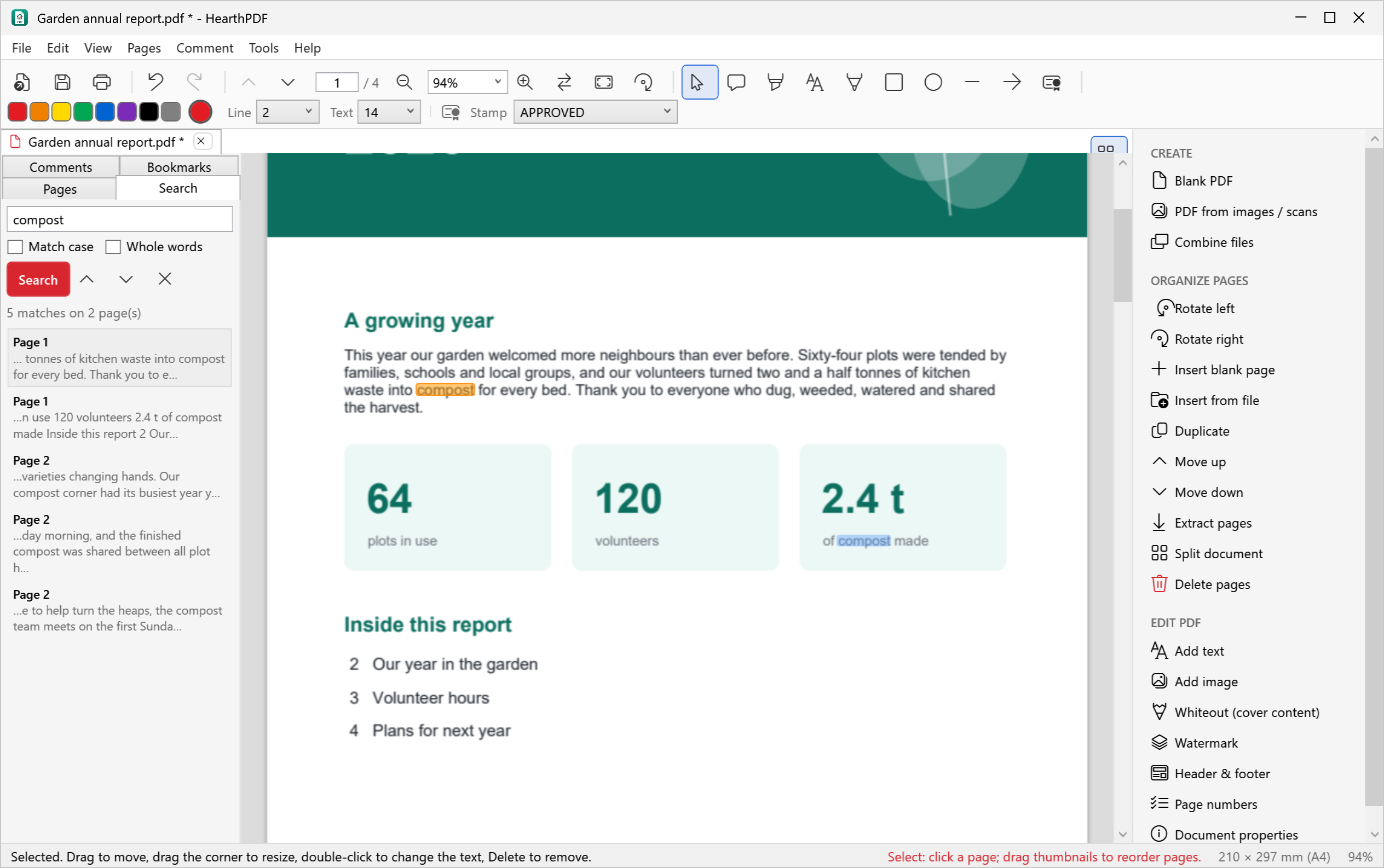
Press Ctrl+F (or open the Search tab), type a word or phrase and press Enter. Every match is listed with its page and the words around it, and highlighted on the page. Use the arrows, or Enter and Shift+Enter, to step through them. Tick Match case or Whole words to narrow the search.
copies all the text on the current page, ready to paste into an email or document.
8. Creating and combining PDFs
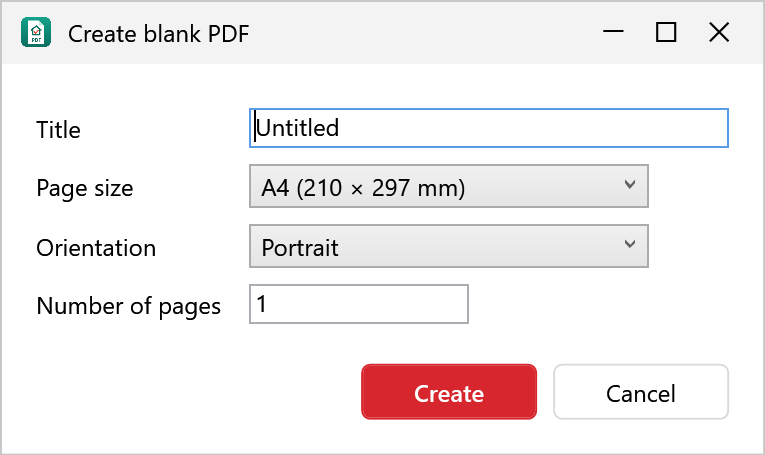
A blank PDF
(Ctrl+N): choose the paper size (A4, A3, Letter…), portrait or landscape, and the number of pages. Then add text, images or drawings.
A PDF from photos or scans
: pick one or more pictures (PNG, JPG, TIFF…). Each picture becomes a page; choose a paper size (or the size of the picture) and a margin.
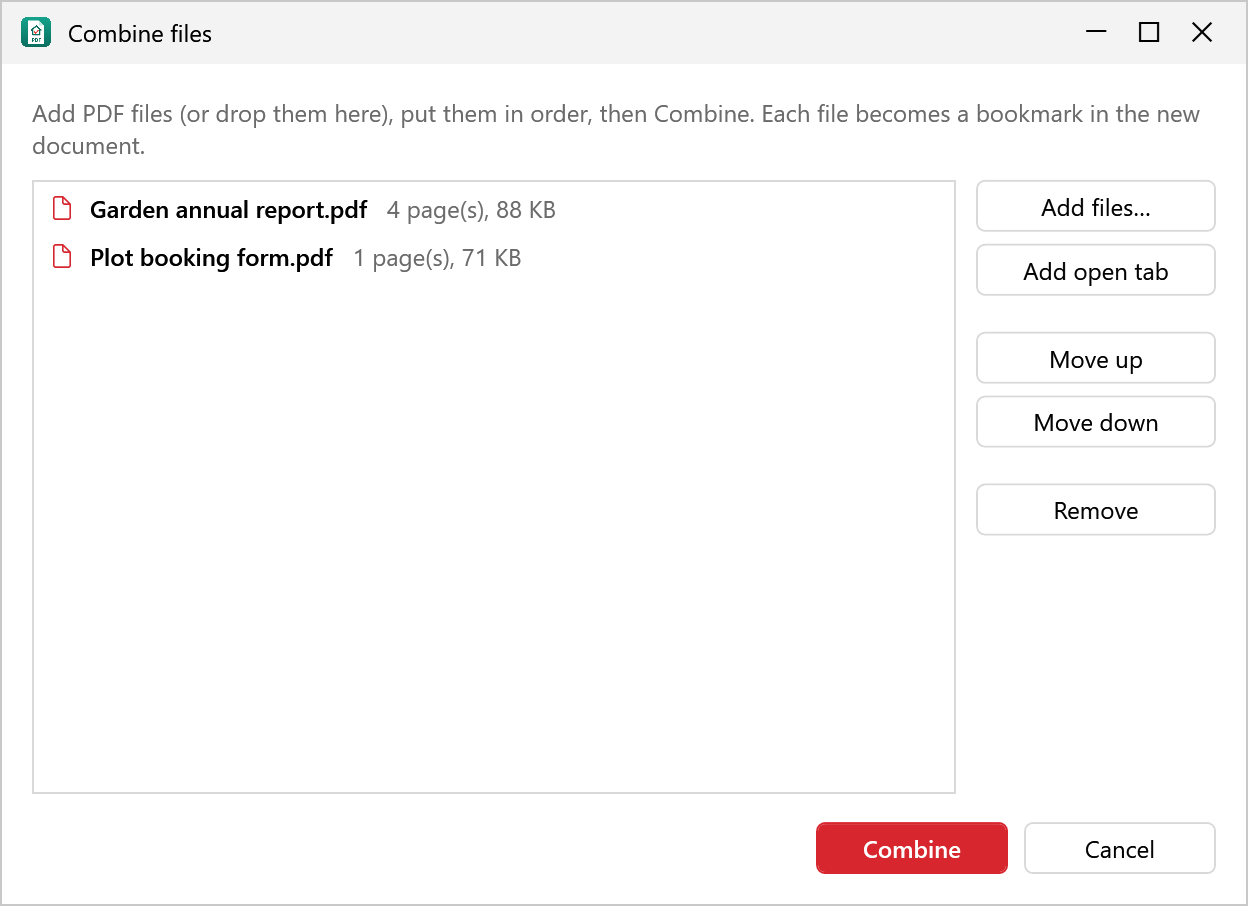
Combining PDFs
: add PDFs (or drop them on the window), put them in order with Move up and Move down, then click Combine. Each file becomes a bookmark in the new document so you can find it again.
9. Watermarks, headers, footers and page numbers
These are in the menu and the tools pane. Each one asks which pages to change; leave it blank for all pages, or type something like 1-3, 6.
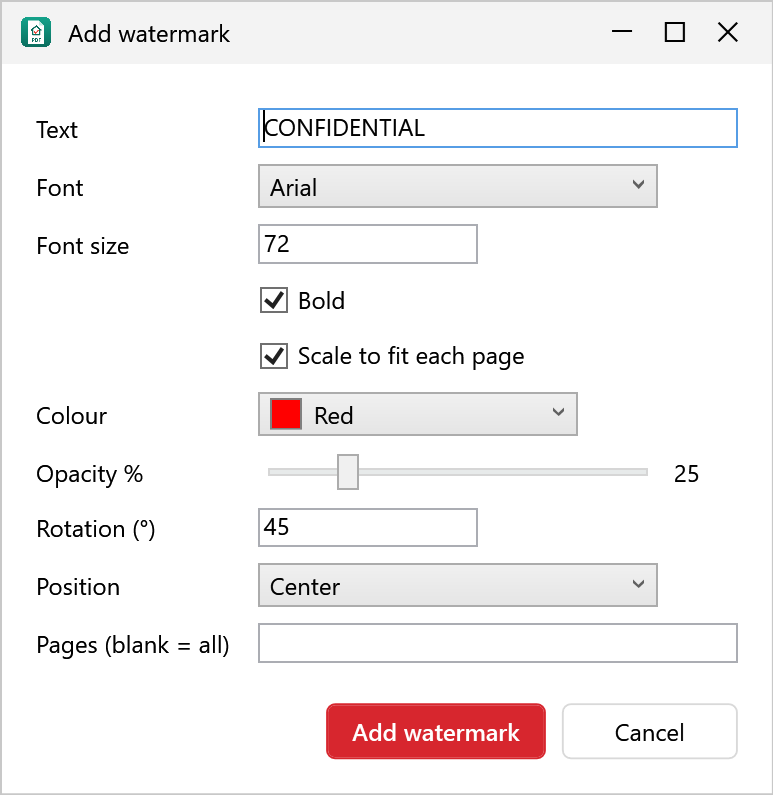
Watermark
Text across the page such as DRAFT or CONFIDENTIAL. Choose the font, size, colour, see-through amount (opacity), angle and position.
Header & footer
Text at the top and bottom of the page: left, centre and right. You can use these codes, which are filled in for each page:
| Code | Becomes |
|---|---|
{page} | the page number |
{pages} | the total number of pages |
{date} | today’s date |
{time} | the time now |
{file} | the file name |
{page:000000} | the page number with leading zeros, e.g. 000012 |
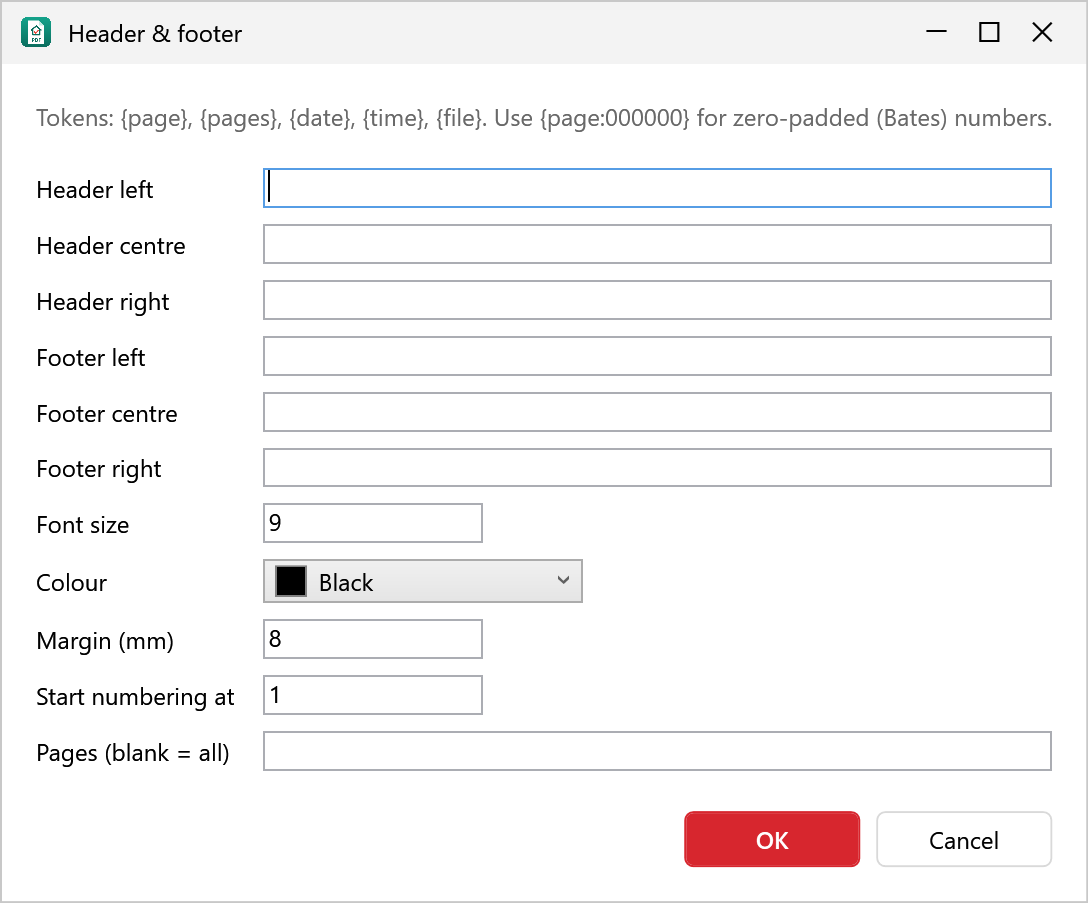
Page numbers and Bates numbering
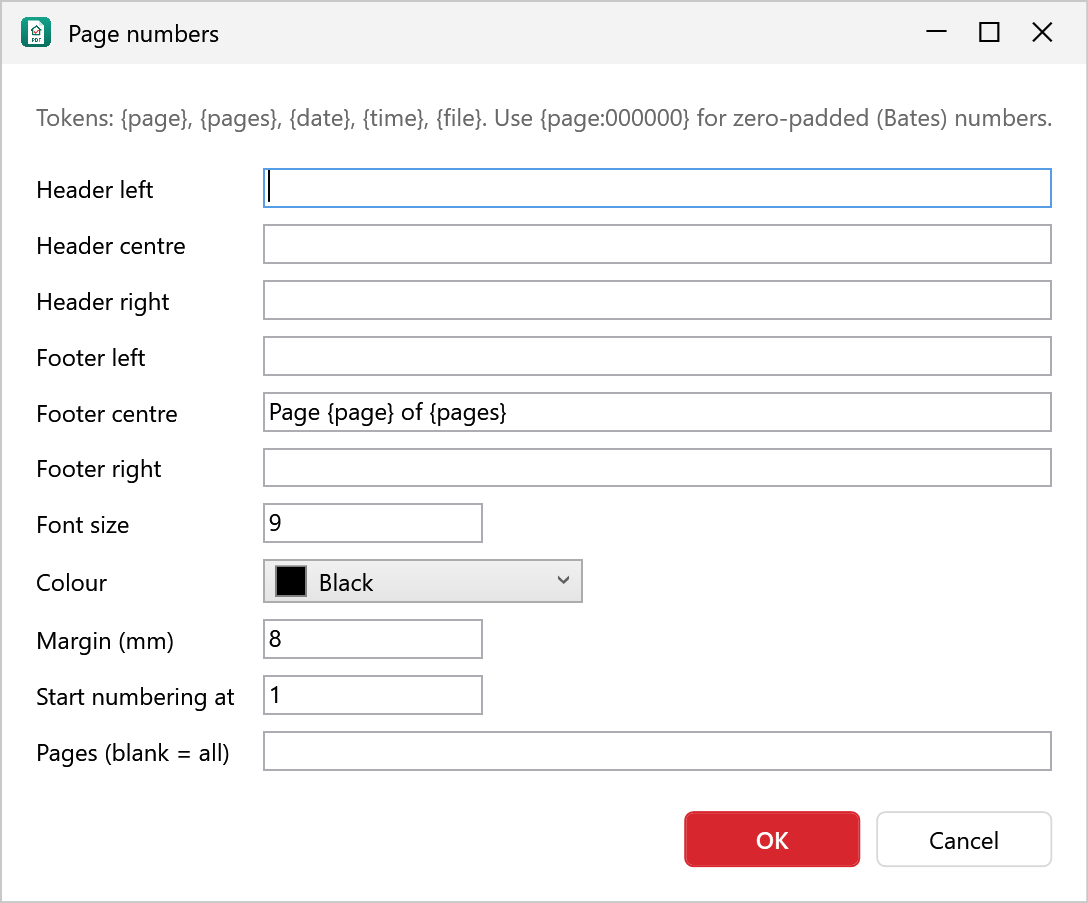
Add page numbers is a quick way to put “Page 1 of 12” in the footer. Bates numbering stamps a running reference such as ABC000123 on every page (change ABC to your own prefix), as used for legal and evidence bundles.
10. Document properties
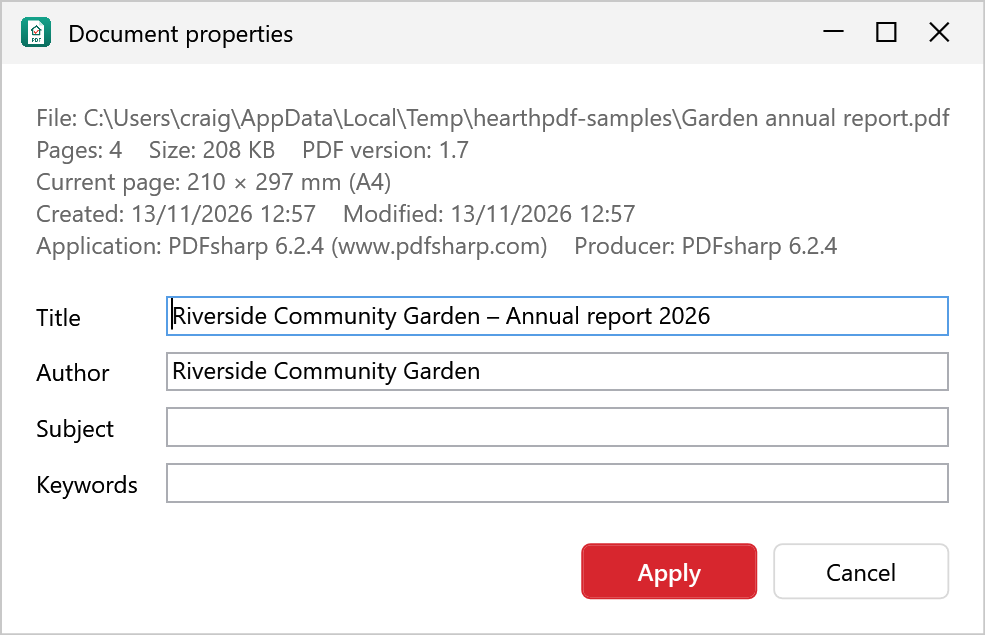
(Ctrl+D) shows the title, author, subject and keywords stored inside the PDF, and lets you change them. Search engines and document systems use these.
11. Saving and printing
- A * after the file name in the tab means there are unsaved changes.
- Save (Ctrl+S) updates the file; Save as (Ctrl+Shift+S) saves a copy under a new name and keeps the original unchanged.
- Undo (Ctrl+Z) and Redo (Ctrl+Y) work for every change, up to 40 steps.
- Print (Ctrl+P) uses your normal Windows printers, including “Microsoft Print to PDF”.
- If you close a tab or the app with unsaved changes, HearthPDF asks whether to save them.
12. Privacy and your data
HearthPDF works entirely on your computer. It never uploads your documents and never connects to the internet. There is no account and no tracking.
The only things it keeps are its own settings, in %AppData%\HearthPDF: the recent files list and the name shown on your comments.
- : untick it to stop keeping a recent files list (the current list is cleared).
- : shows what is stored and deletes everything in one click.
The Help menu’s links (this guide online, the website and the donation page) open in your web browser, only when you click them.
13. Keyboard shortcuts
| Keys | Action | Keys | Action |
|---|---|---|---|
| Ctrl+O | Open | Ctrl+F | Find |
| Ctrl+S | Save | Ctrl+D | Document properties |
| Ctrl+Shift+S | Save as | Ctrl++ / Ctrl+− | Zoom in / out |
| Ctrl+P | Ctrl+0 | Fit page | |
| Ctrl+N | New blank PDF | Ctrl+1 | Actual size |
| Ctrl+W | Close tab | Ctrl+2 | Fit width |
| Ctrl+Z | Undo | Ctrl+Home / End | First / last page |
| Ctrl+Y | Redo | Ctrl+Shift++ / − | Rotate pages right / left |
| Esc | Back to the Select tool | F1 | This guide |
14. Problems and questions
Windows says “Windows protected your PC” when installing
This appears for new apps that Windows hasn’t seen many times yet. Click More info and then Run anyway. Only download HearthPDF from its own website or GitHub page.
I can’t select or search the text
The PDF is probably a scan (a picture of the page). Scans have no text layer.
A PDF opens but says “view only”
It is encrypted or uses a structure HearthPDF can’t rewrite safely. You can still read, search and print it.
Reporting a problem
Please open an issue on GitHub and describe what you did and what happened. Please don’t attach private documents.
HearthPDF is free. If it helps you, you can buy us a coffee ☕.